解决方法和步骤:

  1. 打开安装包;
  2. 将安装包+“INSTALLER”+拖动复制到某个文件夹,复制后的文件路径例如像这样:%2FUsers%2Fmichael%2FDownloads%2FINSTALLER.app;
  3. 打开+Terminal%2C+输入xattr+-cr+,再将复制后的“INSTALLER”拖动到Terminal,此时像这样:xattr+-cr+%2FUsers%2Fmichael%2FDownloads%2FINSTALLER.app,然后按return;
  4. 打开复制后的“INSTALLER”安装;
  5. 安装好“INSTALLER”后,打开刚才安装的+Adobe+软件,打开后再关闭;
  6. 安装“Adobe+2023-2024+一键激活+Patcher+v14.pkg”;
  7. 完成。

当你在 macOS 上遇到“Library not loaded: @rpath/libcurl.4.dylib”的错误时,这通常意味着你的应用程序在运行时找不到指定的动态链接库(DLL)文件。这种情况通常发生在以下几种情况:

解决方案

  1. 确保库文件存在:确保 libcurl.4.dylib 文件存在于你的应用程序的 @rpath 目录下。你可以使用 install_name_tool 来查看和修改库文件的路径。
  2. 设置正确的运行路径:使用 install_name_tool 来修改库文件的安装名称(install name)。例如,如果你的应用程序位于 /Applications/MyApp.app,而 libcurl.4.dylib 位于该应用的 Contents/Frameworks 目录下,你可以使用以下命令来设置正确的运行路径:install_name_tool -change @rpath/libcurl.4.dylib @executable_path/../Frameworks/libcurl.4.dylib /Applications/MyApp.app/Contents/MacOS/MyApp
  3. 或者,如果你使用的是 Xcode,可以在项目的 Build Phases 中添加一个 Run Script Phase,在其中加入上述命令。
  4. 检查构建配置:确保你的项目配置正确设置了运行时搜索路径(Runpath Search Paths)。在 Xcode 中,你可以在 Target 的 Build Settings 中查找 Runpath Search Paths,并添加包含 libcurl.4.dylib 的目录。例如:
    • 在 Xcode 的 Build Settings 中,找到 Runpath Search Paths 并添加 @executable_path/../Frameworks
  5. 使用 lipo 工具验证架构:确保 libcurl.4.dylib 支持你的应用程序架构(如 arm64, x86_64 等)。你可以使用 lipo 工具来检查和修改库文件的架构:lipo -info /path/to/libcurl.4.dylib如果库文件的架构不正确,你可能需要重新编译或获取正确架构的库文件。
  6. 清理和重建项目:有时候,简单的清理和重建项目可以解决路径或配置问题。在 Xcode 中,你可以选择 Product > Clean Build Folder,然后重新构建项目。

通过上述步骤,你应该能够解决 “Library not loaded: @rpath/libcurl.4.dylib” 的错误。如果问题仍然存在,检查是否有其他依赖问题或配置错误,并确保所有依赖库都已正确安装和配置。

The host has a changing IP address (or none if you have no network access). From 18.03 onwards our recommendation is to connect to the special DNS name host.docker.internal, which resolves to the internal IP address used by the host. This is for development purpose and will not work in a production environment outside of Docker Desktop for Mac.

The gateway is also reachable as gateway.docker.internal.

link: https://docs.docker.com/docker-for-mac/networking/

在使用纯代码构建UI界面时,如果只是把NSViewController的View简单的Add到NSWindow中,则导致无法监听到action的。例如如下代码:

// mainwindow
let result = MainWindow(contentRect: AppConfig.windowRect, styleMask: .titled, backing: .buffered, defer: false)
result.styleMask.insert(.closable)
result.styleMask.insert(.miniaturizable)
result.title = NSLocalizedString("HomeTitle", comment: "")
result.titleVisibility = .visible
result.titlebarAppearsTransparent = false
result.delegate = result
result.center()
        
let viewController = MainViewController()
result.contentView?.addSubview(viewController.view)


// MainViewController 
... ...

slPasswordLength.target = self
slPasswordLength.action = #selector(onChangedPasswordLength(sender:))

... ...

@objc private func onChangedPasswordLength(sender: NSSlider) {
        tfPasswordLengthValue.stringValue = "\(sender.integerValue)"
        scStepper.intValue = sender.intValue
    }

错误的原因是在result.contentView?.addSubview(viewController.view)这一句,仅仅将view添加进去,正确的做法应该是将整个ViewController设置为MainWindow的contentViewController,如下:

let result = MainWindow(contentRect: AppConfig.windowRect, styleMask: .titled, backing: .buffered, defer: false)
result.styleMask.insert(.closable)
result.styleMask.insert(.miniaturizable)
result.title = NSLocalizedString("HomeTitle", comment: "")
result.titleVisibility = .visible
result.titlebarAppearsTransparent = false
result.delegate = result
result.center()
        
let viewController = MainViewController()
result.contentViewController = viewController
在开发Mac OS App的时候如果想使用自定义的字体,并且在发布的时候也带上自定义的字体库,则需要如下几个步骤:

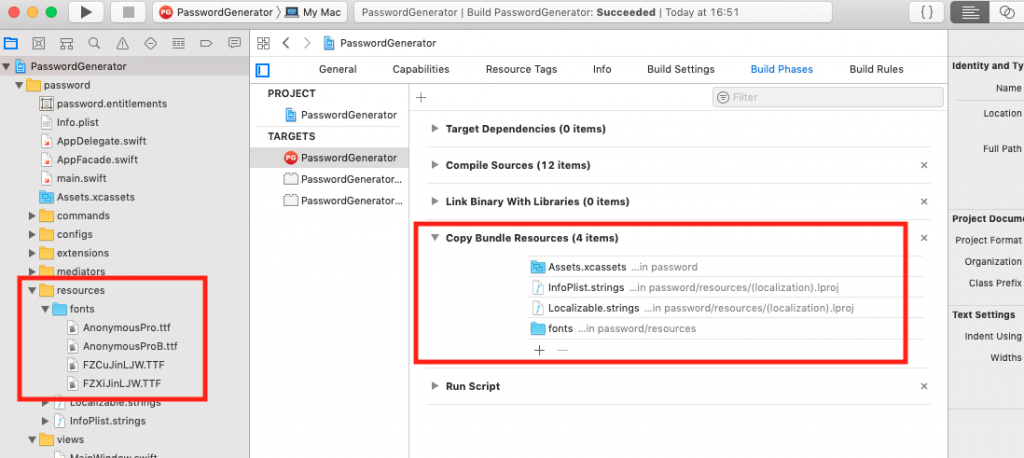
  • 添加字体文件到Xcode的项目中
  • 修改Info.plist

1. 添加字体文件

将字体文件拖拽(添加)到项目的资源库中。范例如下图:

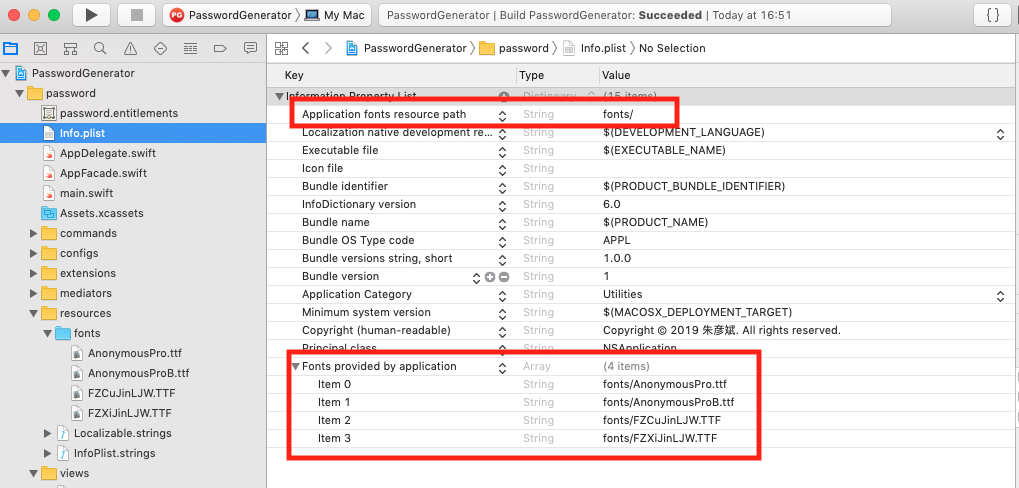
2. 修改Info.plist文件

新增Fonts provided by application及Application fonts resource path两项。

  • Fonts provided by application选Array类型,每个item后填上一个字体文件的路径,新增了多少个字体文件,就填写多少个item
  • Application fonts resource path选String类型,填上字体文件所在目录路径即可。

注意:Application fonts resource path是Mac OS App项目必填的,否则找不到字体文件,这点是与iOS项目不一样的,iOS项目只需要填写Fonts provided by application即可。范例如下图:

完成上述两个步骤,即可使用自定义字体了。

extension NSFont {
    class func mainBoldFont(size: CGFloat) -> NSFont {
        let font = NSFont(name: "FZCUJINLJW--GB1-0", size: size)
        return font ?? NSFont.systemFont(ofSize: size)
    }
    
    class func mainFont(size: CGFloat) -> NSFont {
        let font = NSFont(name: "FZXIJINLJW--GB1-0", size: size)
        return font ?? NSFont.systemFont(ofSize: size)
    }
}

Mac OS App的storyboard中无法直接使用自定义的字体,但是可以在代码中使用,这个问题我没找到原因,如果您找到了方法请告知我。谢谢!

PS: 查看所有可用字体代码片段

let manager = NSFontManager.shared
for name: String in manager.availableFonts {
    print("font name=====" + name)
}

During startup – Warning messages:
1: Setting LC_CTYPE failed, using “C”
2: Setting LC_COLLATE failed, using “C”
3: Setting LC_TIME failed, using “C”
4: Setting LC_MESSAGES failed, using “C”
5: Setting LC_PAPER failed, using “C”
[R.app GUI 1.50 (6126) x86_64-apple-darwin9.8.0]

WARNING: You’re using a non-UTF8 locale, therefore only ASCII characters will work. Please read R for Mac OS X FAQ (see Help) section 9 and adjust your system preferences accordingly.


answer:

  1. Open Terminal
  2. Write or paste in: defaults write org.R-project.R force.LANG en_US.UTF-8
  3. Close Terminal
  4. Start R

在安装fir-cli时出现了如下错误:


$ gem install fir-cli

Fetching: thor-0.20.0.gem (100%)

ERROR: While executing gem ... (Gem::FilePermissionError)

You don't have write permissions for the /Library/Ruby/Gems/2.3.0 directory.

解决办法:


sudo gem install -n /usr/local/bin fir-cli